Tools
What the assistant can do for you
The assistant has functions that allow it to retrieve information and perform actions. It uses them invisibly to the customer during the conversation.
You can enable or disable each tool individually from the app.
- No human approval needed, the assistant can use them freely.
- No human action involved, they are fully automatic.
Example of some queries
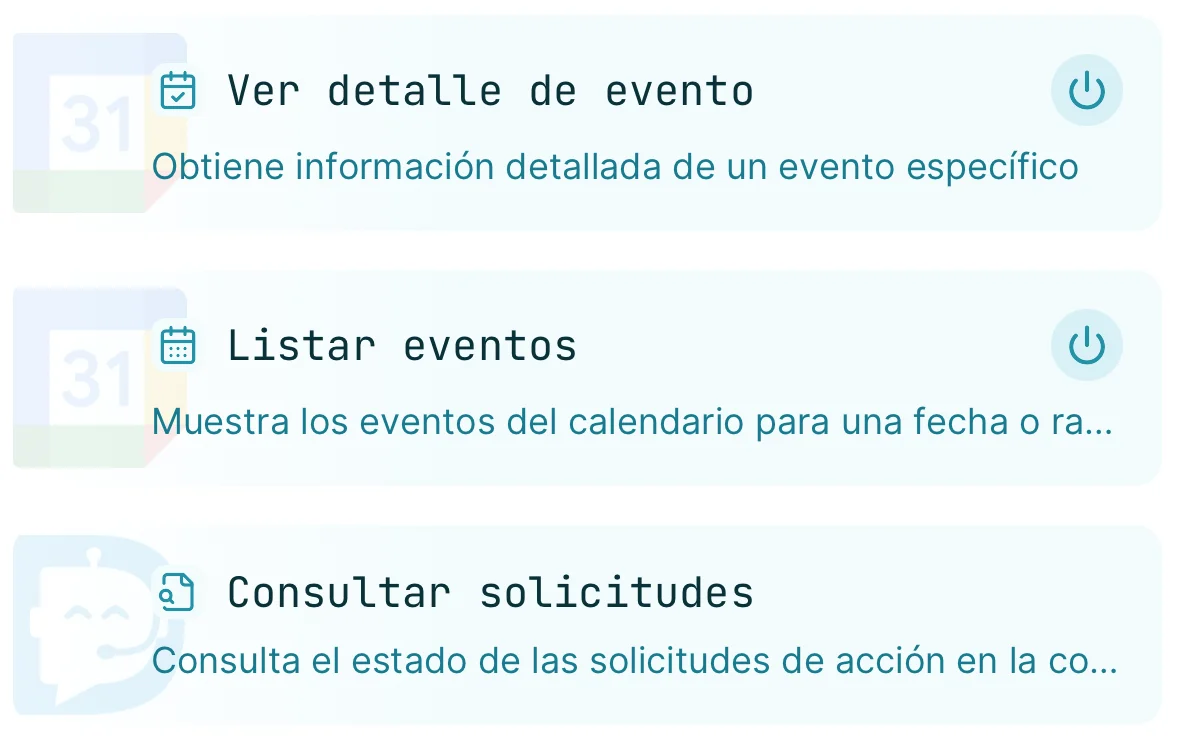
- By default, they always require your approval -- they generate an action request
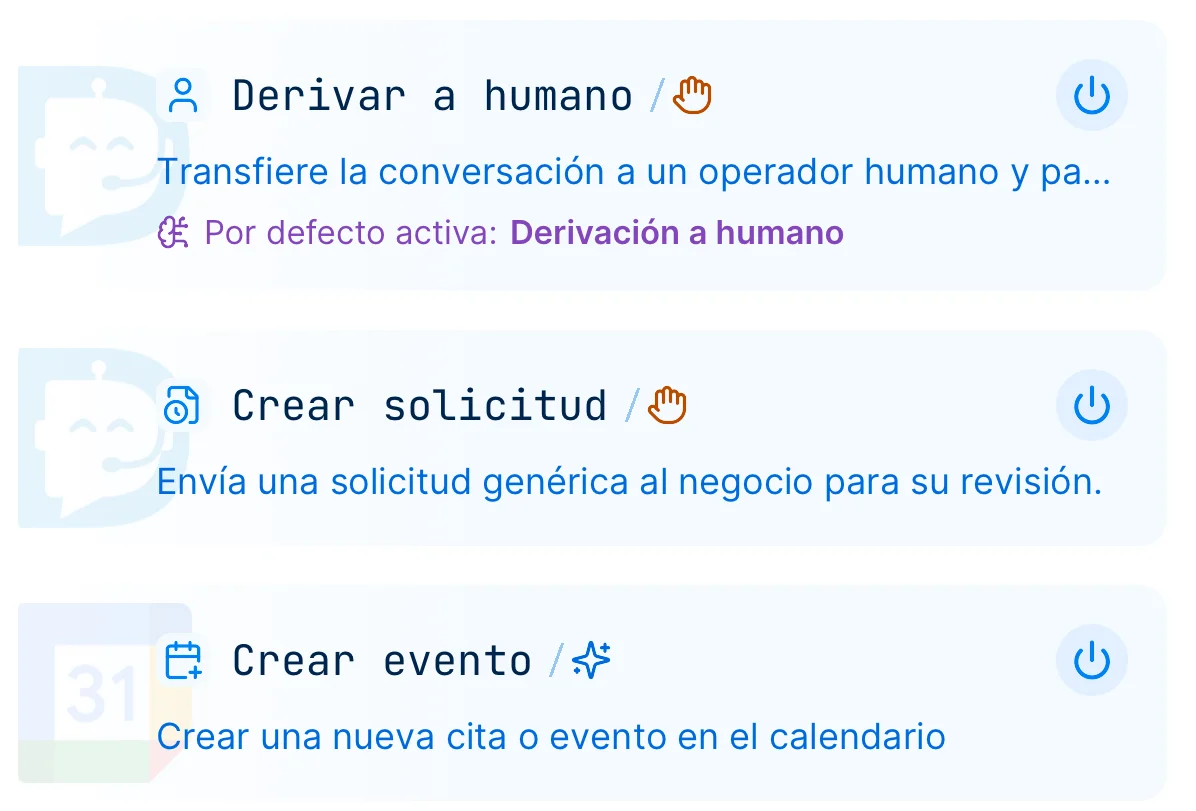
- There are two execution types:
Example of some actions
Understand tools in detail
Understanding tools
Each tool defines what information it needs to work: some data is required and some is optional. The assistant handles gathering this information during the conversation with the customer, naturally.
Example: if the "Create booking" tool needs a date, time, and service, the assistant will ask the customer for each missing piece until it has everything needed to perform the action.
Enable and disable
Each tool individually. Only active tools will be available.
System tools
Some are internal and cannot be disabled. They are required for Darto.
Linked to flows
If you disable a tool used in a flow, that flow will be deactivated.
Details about actions
Require a flow: some actions need to be linked to a flow to be executed. If the assistant uses one outside a flow, the default flow for that action is activated automatically.
Manual: after your approval, you perform the action manually in your system (Booksy, Excel, etc.). Darto only records and notifies.
Automated: after your approval, Darto performs the action directly in the integrated system. Availability of automated actions depends on your integration -- not all integrations support them.
Want to see all available tools?
View integrations and their toolsRequests
The heart of Darto's control.
When the assistant wants to do something "serious" in your system — book, modify, cancel — by default it doesn't act directly. It prepares a request, presents it summarized in your dashboard, and waits for your verdict. You decide with a couple of taps, without having to read the entire chat.
The tab where the business acts. Every request comes pre-chewed — who, what, when — so you decide with one tap.
Mark an Automated as Auto-executed and it will stop generating requests.
The optional exception to the request system. For routine actions that don't need your permission every time.
- • Only applicable to Automated — manual ones always go through a request.
- • Darto executes them on the spot, without asking for permission.
- • They stay only in Activity, as history.
Everything the assistant has executed is logged here — resolved requests and auto-executed actions, all in a single chronological line. It's a read-only view for reviewing what has happened; the business manages from Requests.
Flows
Conversation scripts for every situation
Flows are predefined scripts the assistant follows in important situations: handling a complaint, escalating to a human, group bookings... They ensure consistent and professional responses.
Default mode. The assistant manages the conversation freely.
When it detects a specific situation, it follows the defined steps.
Includes an AI-powered flow builder. Describe the situation in plain language and a complete flow is generated.
Example of some flows
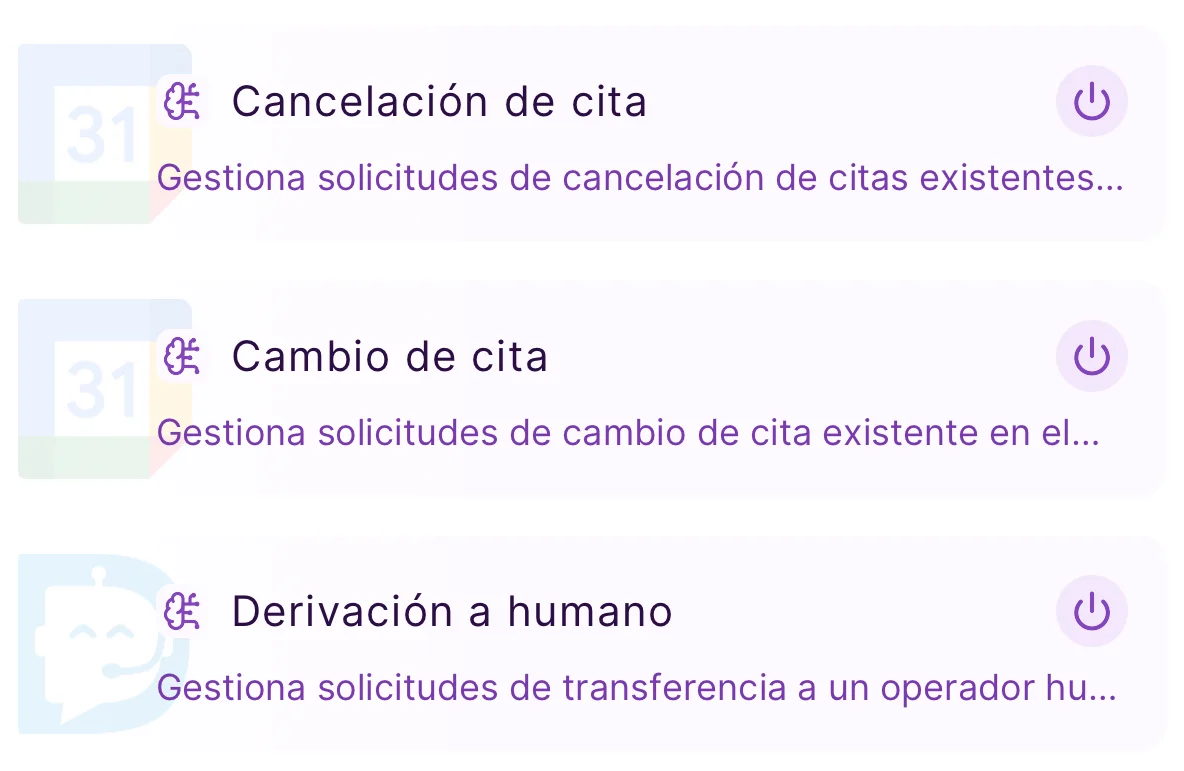
What a flow looks like inside
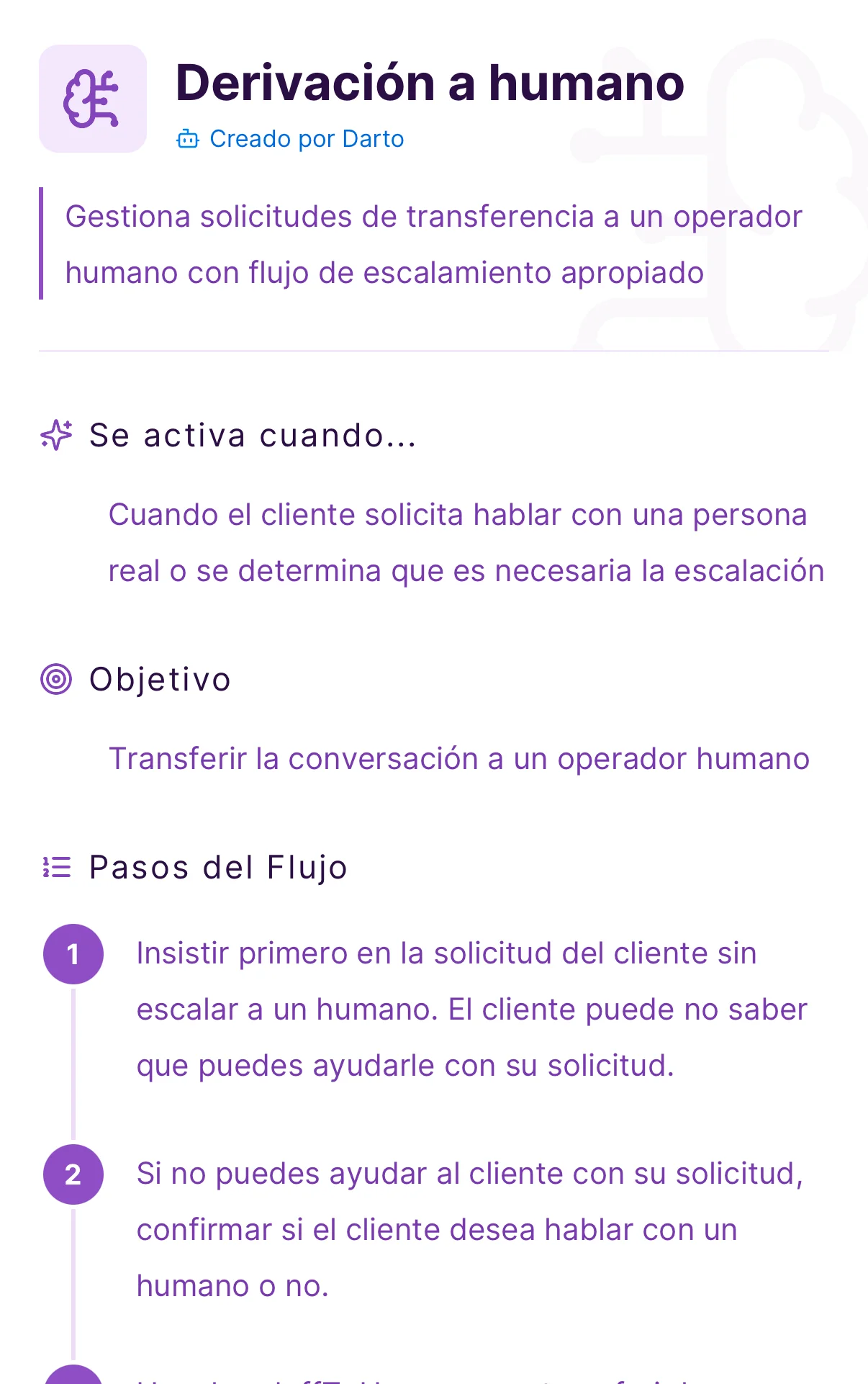
Each flow has a clear structure the assistant follows step by step. You can edit them or create your own from the app.
Flow structure
Condition that activates the flow
Expected outcome of the flow
Ordered instructions the assistant follows sequentially.
In each step you can link any available tool to force the assistant to use it at that point in the flow.
More about flows
Flows included by default
Darto includes preconfigured flows tailored to your integration. They are ready to use from day one, but you can edit, disable, or customize their steps at any time.
Some flows only appear if you have a compatible integration -- for example, booking flows are only available with scheduling integrations.
Create your own flows
In addition to the included flows, you can create your own for any situation you need. There are two ways:
Describe in plain language what you want: "when a customer complains, have the assistant listen, apologize, and escalate". The AI generates the complete flow automatically.
Full control: define each step, assign tools, configure the trigger and objective to your liking.
Action customization: when creating flows, you can customize the actions used in each step. For example, you can configure the "Create request" action so the assistant must ask the customer for certain data.
"Create request" action in a booking change flow
Flow management
Enable and disable
Pause flows without deleting them and reactivate whenever you want.
Linked to tools
Tools are automatically enabled/disabled based on flows.
Depends on integration
If you switch integrations, incompatible flows are deactivated.
Automatic detection: the assistant analyzes each customer message and, when it detects a match with a flow trigger, activates it and follows its steps. No intervention needed -- the assistant decides when to use each flow based on the conversation context.
Integrations
Connect your management software
Connect Darto with your management system so the assistant can query and manage data in real time.
Real-time data
Availability, bookings, and services always up to date.
More tools
Each integration unlocks specific queries and actions.
Real automation
Automated actions are executed directly in your system.
Available integrations
see more -->

Don't have a management system?
Darto works perfectly without an integration. Set up your business knowledge manually and the assistant will serve your customers, answer questions, manage requests and much more. The integration simply adds extra automation.
Your system isn't on the list? Request an integration and we'll evaluate it.
Memory and Context
The assistant remembers everything that matters
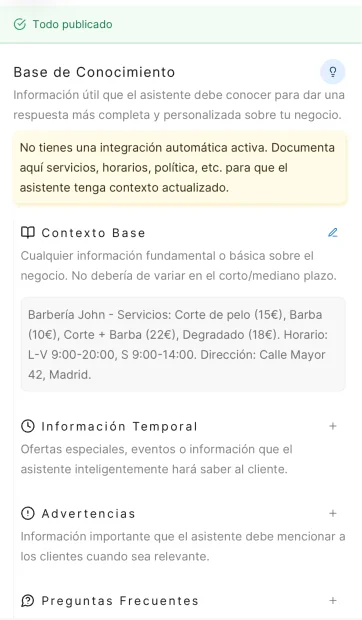
Every response is contextualized. Each time a customer writes, the assistant has access to:
Previous messages, decisions made, accumulated summary.
Preferences, name, data remembered from previous interactions.
Base context, FAQs, vocabulary, warnings, and temporary info.
If you have an integration, information is synced automatically.
What you can configure
Knowledge Base
Base business context, warnings, FAQs with questions and answers, industry vocabulary, and temporary content with expiration dates (promotions, closures, events).
Instructions
General assistant behavior, tone and style of responses, and welcome message for new conversations.