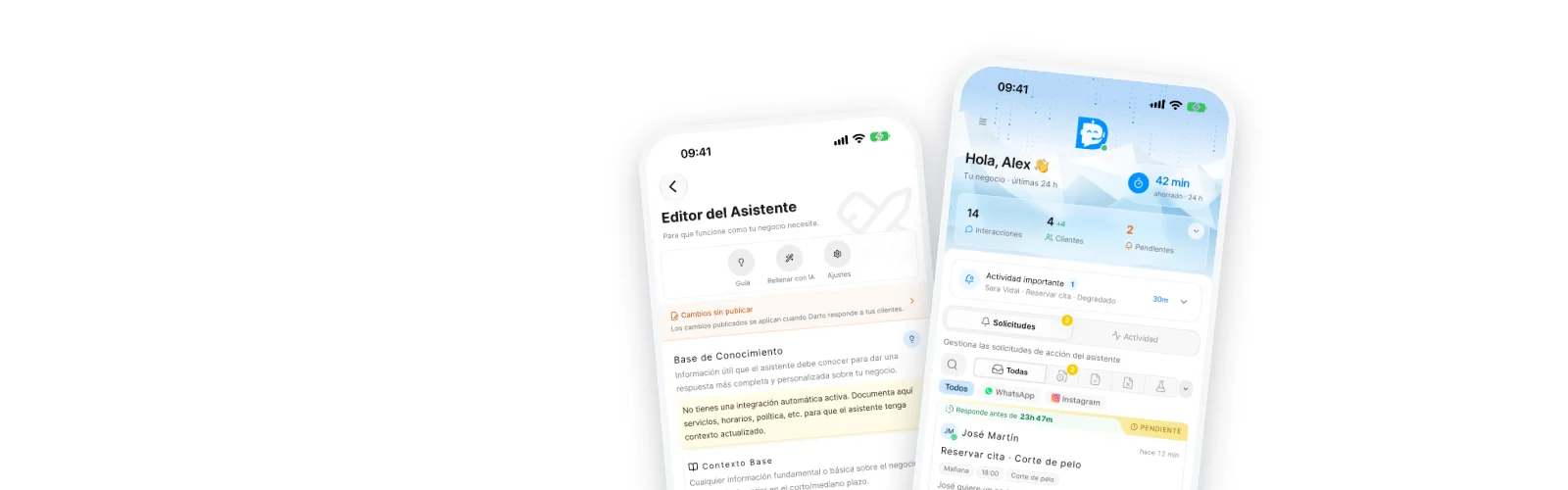
Getting started with Darto isn’t about filling in a hundred fields or getting everything perfect on the first try. The idea is simpler: give the assistant enough context to serve your customers well, test it calmly and then connect your real channels.
What is Darto?
Darto is a tool that automates your business’s customer service on WhatsApp and Instagram.
It can help you:
- answer frequently asked questions,
- handle conversations while you’re busy with other things,
- and carry out or suggest actions depending on how your business is set up.
The important part: you don’t have to set everything up at once. You can start with a simple setup and fine-tune it later.
What to have at hand before you start
If you prepare this beforehand, you’ll go much faster:
- your business hours, services, prices and basic policies,
- the questions customers ask you over and over,
- access to your accounts if you’re going to connect WhatsApp or Instagram,
- and, if you use external software, the details needed to connect it.
The recommended order
Onboarding in Darto follows a fairly logical order. If you follow it, everything fits together better.
Step 1: decide between an integration or Darto Essential
First, choose whether you want to connect an external system or start without an integration.
If you already use management software
Connect that integration. That way Darto can rely on real information from your business and on the assistant’s queries and actions.
If you don’t use any software
That’s fine. You can start with Darto Essential and document manually:
- which services you offer,
- your opening hours,
- your prices,
- your policies,
- and any detail the assistant should know.
For many small businesses, this is already enough to get off to a good start.
Step 2: set up your assistant’s information
This is where you give the assistant the context it needs to answer properly.
Think of it as training someone new on your team:
- how you talk to customers,
- what they absolutely need to know,
- which warnings or nuances they should mention,
- and which questions tend to come up again and again.
The clearer and more specific you are here, the better it will answer later.
Step 3: test it before opening the doors for real
Darto includes a test chat so you can see how the assistant replies before connecting it to real channels.
Use it to check things like:
- whether it understands what your business does,
- whether the tone suits you,
- whether it answers with the right information,
- and whether there’s anything important you haven’t explained yet.
This step is worth it. Better to adjust things here than once real customers are writing to you.
Step 4: connect your messaging channels
Once you’re comfortable with the test, it’s time to connect your real channels.
You can connect:
- WhatsApp Business
- or both, if you like
If you want to start quickly, our advice is simple: start with one channel, try it for a few days and then expand.
If you choose WhatsApp, read this guide on how to connect it properly first, because there’s an important detail about the number and the WhatsApp app.
Step 5: switch it on and start observing
Once everything is connected, you can start using Darto with real customers.
At first, the most useful thing isn’t tweaking a thousand settings but observing:
- which questions come in most,
- where it answers especially well,
- and in which cases you’d rather step in yourself.
That will help you fine-tune the assistant far better than trying to make it perfect from minute one.
Keep an eye on it from the app
From the Darto app you can:
- see every conversation in real time,
- step in manually whenever you want,
- review pending actions or the assistant’s suggestions,
- and adjust the assistant’s settings at any time.
A practical tip
When you make important changes to the assistant’s settings, test them calmly first. If your business is already serving real customers, it’s better to make those adjustments at a quiet time rather than in the middle of a rush.
Need help?
If you have questions during setup, write to us at help@darto.es.