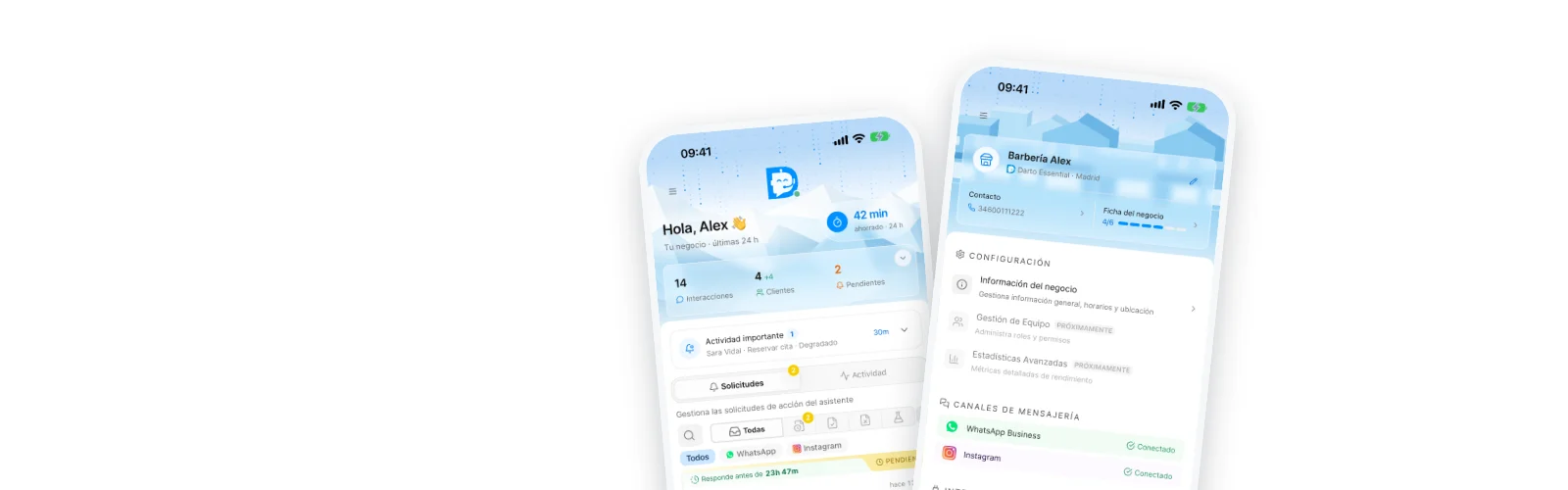

If you’re going to connect WhatsApp to Darto, the first thing is to choose how you want to work with your number.
There are two main paths:
- Keep your current WhatsApp Business with coexistence: you keep using the WhatsApp Business app and Darto connects to the same number to handle direct conversations.
- Use a dedicated number for Darto: that number is managed from Darto, with the automatic assistant and manual chat inside the app.
The good news: you don’t need to understand the technical side. You only need to know what changes in your day-to-day and what to have ready before connecting.
Quick summary
- If you already serve customers from WhatsApp Business, you’ll usually want to start with coexistence.
- If you want to keep automated service separate from your usual WhatsApp, use a dedicated number for Darto.
- The dedicated number can be new, a second line or a number you transfer to the API.
- If you transfer a number to Darto’s dedicated mode, you’ll stop using it in the WhatsApp Business app.
- Your personal number can be used, but honestly we don’t recommend it.
WhatsApp costs you should know about
Darto and WhatsApp aren’t exactly the same cost.
On one side there’s Darto’s price. On the other, Meta may charge for some messages sent through the WhatsApp Business Platform.
The basic idea:
- When a customer writes to you, a 24-hour service window opens.
- Within that window you can reply with normal messages at no cost (Darto’s assistant always replies within this window).
- If you want to message them after those 24 hours, you’ll usually need a template approved by Meta.
- Some proactive messages or templates may have a cost depending on the country and the message category.
- This applies the same whether the assistant replies or you reply manually from Darto.
Darto will try to show you when a message depends on the window, a template or a payment method, so there are no surprises.
Before you start
If you choose coexistence, you keep using the app
With coexistence, your number stays active in the WhatsApp Business app. During sign-up, Meta may ask you to confirm the connection with a code or QR inside the app itself.
Keep three things in mind:
- Darto handles the direct conversations that come in through Meta’s official connection.
- If you reply yourself from WhatsApp Business, Darto detects that reply and pauses the assistant for that customer.
- Meta may ask you to share history/contacts during the connection. That permission can only be requested once and depends on what you accept in the flow.
Better not to use your personal number
You can, but it’s not a great idea. If you use your personal number:
- Your personal WhatsApp will become a Business account and your contacts will see your business profile.
- You’ll end up mixing personal life and work in the same place.
- If you ever change how you operate, you’ll have to reorganise everything.
Which option suits you
Choose coexistence if…
- you already use WhatsApp Business with your main number,
- you want to keep the app so you can reply yourself when needed,
- and you want Darto to automate chats without forcing you to change numbers.
Choose a dedicated number if…
- you want to keep it simple,
- you don’t need to keep the WhatsApp Business app on that number,
- you want to separate the automated channel from the manual one,
- you use groups, broadcasts or social features on your usual WhatsApp,
- or you’d rather have everything Darto-related on a separate line.
Option 1: keep your number with coexistence
How it works
Your number stays in the WhatsApp Business app and is also connected to Darto through Meta’s official connection.
Inside Darto you’ll have an inbox-style chat where you can:
- let the assistant reply automatically,
- see the direct conversations coming in from WhatsApp,
- and have the assistant step aside automatically when you reply from the app.
Advantages:
- You keep your usual number.
- You can keep using the WhatsApp Business app.
- Darto detects when you reply and stops answering over you.
- You don’t have to tell your customers about a new number.
What you need:
- Access to the WhatsApp Business app for that number.
- To be able to complete Meta’s flow from Darto.
- To confirm the connection when Meta asks, with a code or QR.
Important things:
- Meta may ask you to share history/contacts when connecting; that permission only appears during the connection and only if you agree to share them.
- Templates, reminders and Meta’s payment method keep working from the same WhatsApp Business account.
- Some app features may change or be limited by Meta’s rules.
- If Meta disconnects coexistence due to inactivity, a number change or a manual disconnection, Darto will let you know so you can reconnect.
Option 2: use a dedicated number for Darto
How it works
All service on that number is managed from Darto.
Inside Darto you’ll have an inbox-style chat where you can:
- see conversations in real time,
- let the assistant reply automatically,
- pause the assistant for a specific customer,
- and reply manually whenever you want.
Advantages:
- You only need one number.
- Everything stays in one place.
- It’s the simplest option to get started without complications.
Limitations:
- You won’t be able to use the WhatsApp app, WhatsApp Business or WhatsApp Web with that number.
- You won’t be able to run groups, communities or broadcast lists from that channel, because the API doesn’t allow it.
If you need to keep groups, broadcasts or the WhatsApp Business app on your main number, use coexistence or keep that number for manual use and connect another one to Darto.
You have two paths within this option
1. Use a new number, or one not linked to WhatsApp
This is the cleanest option. If that number isn’t used on WhatsApp, the process is usually much more straightforward.
What to do:
- Get a new number, physical or virtual.
- Make sure it can receive the code by SMS or call.
- Follow the connection process in Darto.
2. Transfer a number you were already using on WhatsApp
Here you keep your usual number but change how it’s managed: it leaves the app and is managed from Darto instead.
Important limitations:
- The app’s local history is lost. Meta doesn’t allow migrating it to the API.
- You must have real access to the number to receive the verification code.
What to do:
- Make a backup if you want to keep your history for reference.
- Delete or unlink WhatsApp / WhatsApp Business from that number on your phone.
- Check that it’s no longer active on any device.
- Start the connection from Darto and complete the verification.
- From then on, that channel is managed from Darto.
3. Keep your current number and add another one for Darto
This is a variant of the dedicated number: your main number stays as it is and you connect a second line to Darto.
It works well if:
- you use groups, broadcasts or very manual messaging on your main number,
- you want to try automation without changing your usual channel,
- or you’d rather separate “personal contact” from “automated service”.
A practical example:
- your usual number is for groups, quick messages or very close customers,
- the Darto number is for bookings, frequent questions and service with the assistant.
Getting a new number?
If you don’t have a second number, don’t worry. It’s much simpler than it seems.
To get one, you’ll usually need:
- a physical SIM or eSIM,
- and a phone where you can activate it, at least to receive the code.
If you’re thinking about a virtual number, be careful: it can work, but it’s not always the most stable option. Here’s our guide on virtual numbers.
Which device should I use?
The simplest option
If you’ll only use that line for Darto or for activation:
- Put the new SIM in your phone temporarily.
- Receive the verification code.
- Complete the process in Darto.
The most convenient option in the long run
If you really want to use that line for calls, SMS or keep it under control at all times:
- Personal phone: if it has room for several physical SIMs or supports eSIM, you can have both numbers at once
- Second phone: you completely separate your personal and work life, but you’ll have to manage two devices
Prepaid SIM
If you only need the number for the Darto channel, a prepaid SIM is usually the most practical solution. Try to look for:
- No commitment
- No minimum monthly top-ups
Watch out: many carriers require a minimum top-up every few months. Otherwise, the line may be suspended.
Additional line SIM
You can also ask your current carrier for an additional line. It’s usually more convenient and more stable, although it normally costs a bit more than a prepaid SIM.
Connect your account to Darto
Once you’re clear on which number you’ll use:
- Open Darto and log in
- Follow the “Connect your WhatsApp Business” step
- Log in with your Meta / Facebook Business account
- Select your business number
- Accept the permissions you’re asked for
And that’s it. From there you can serve customers from Darto, let the assistant reply or step in yourself whenever it suits you.
Need help?
If you have questions during the process, write to us at help@darto.es.